
Sfoglia account
The Sfoglia account is optional: Sfoglia works perfectly well without it. It lets you have Pro bought on one device on the others too (up to 2 phones or tablets and 1 computer), the same planner everywhere and shared notebooks on your devices. Notebooks always stay on the device.
You open the account from Settings → Account.
Create an account





- On the Sfoglia account page tap No account yet? Create one (or Continue with Google, and you're done).
- Type your email and a password of at least 8 characters, then tap Create an account.
- You get an email with a 6-digit code: type it here and tap Confirm.
- You're in: here you see the account's Pro and your devices. On your other devices, sign in with the same email.
Signing in
- 1
Back
Goes back to Settings.
- 2
Continue with Google
Signs in (or creates the account) with your Google account, with no password to remember. On a phone, choose the Google account in the system window; on a computer the browser opens: when you're done, come back to Sfoglia.
- 3
Email
Your Sfoglia account's email.
- 4
Password
The account password (at least 8 characters).
- 5
Show password
Shows or hides what you typed in the password field.
- 6
- 7
No account yet? Create one
Switches to creating a new account.
- 8
Forgot password?
Type your email: you get a code to choose a new password. Your other devices are signed out and you'll need to sign in again with the new one.
- 9
Terms of use
Opens on the website the terms you accept by signing in. Accounts are for people aged 14 and over.
- 10
Privacy policy
Opens on the website the privacy policy, which explains how we handle your data.
- 11
Guide (?)
Opens this guide in your browser, right at the part that explains the screen you're on, in the app's language and with pictures of your device (phone & tablet, or computer). Read more
Creating an account
- 1
Create an account
Creates the account and emails you a confirmation code.
- 2
Already have an account? Sign in
Goes back to Sign in.
Type your email and a password of at least 8 characters, then tap Create an account.
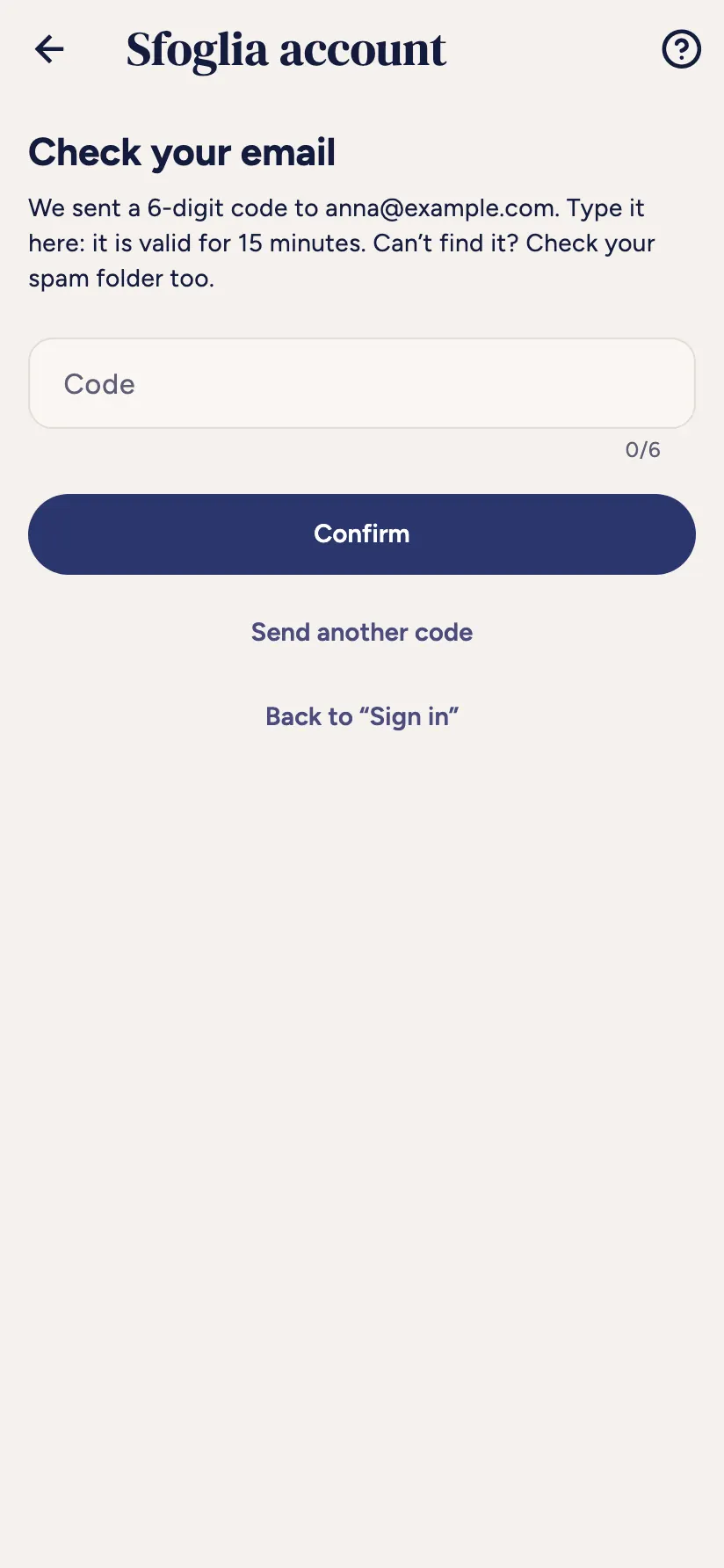
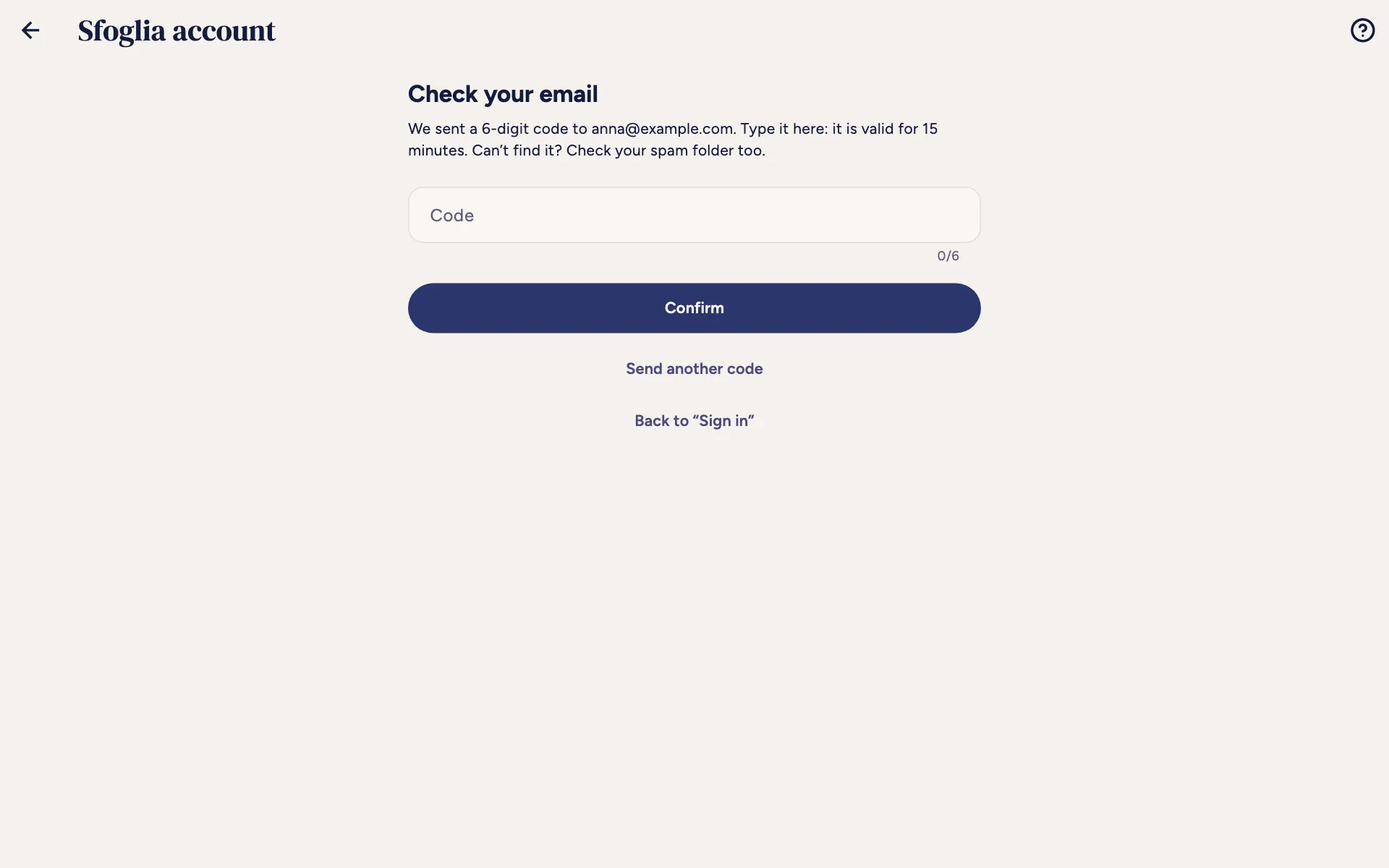
The confirmation code
- 1
Code
Type the 6 digits here and tap Confirm: your email is confirmed and you're in.
- 2
Send another code
Sends a new code (the previous one stops working).
- 3
Back to “Sign in”
Goes back to the sign-in page.
We've sent you an email with a 6-digit code, valid for 15 minutes. If you can't find it, check your spam folder too.
Your account
- 1
Back
Goes back to Settings. Read more
- 2
Email
The account's email; below it says Linked to Google if you sign in with Google.
- 3
The account's Pro
Pro active on all your devices if one of the account's devices has Pro, with where it comes from (a phone or tablet's store, a Pro code or the computer). Otherwise No Pro in the account: buy Pro on one of the devices and it works on all of them.
- 4
Same planner on all your devices
A switch. On, subjects, classes, exams, deadlines, tasks and study sessions go to the server, encrypted, and stay the same on your devices. Off, the server copy is deleted and the planner stays here. We ask you the first time you sign in.
- 5
Your devices
The devices signed in to the account: up to 2 phones or tablets and 1 computer. Each shows its name (by default brand and model) and when it was last used; yours is marked This device.
- 6
Sign out
Signs another device out of the account, after a confirmation: the account closes there and the account's Pro turns off. Use it to free up a slot (for example an old phone). It can sign back in whenever you like.
- 7
Rename
Changes the device's name, so you can recognize it in the list. Only you see it.
- 8
Change email
Type the new address: a code arrives there, to type in the app. The old address gets a notice.
- 9
Download your account data
A file with what the server keeps for your account: email, devices, Pro, planner and linked notebooks.
- 10
Sign out of this device
Signs out of the account on this device, after a confirmation. The account's Pro turns off here; notebooks stay.
- 11
Delete account
Deletes your email and the list of devices, after a confirmation (with the password, if the account has one). Notebooks stay on the devices.
- 12
Guide (?)
Opens this guide in your browser, right at the part that explains the screen you're on, in the app's language and with pictures of your device (phone & tablet, or computer). Read more
Frequently asked questions
Do I need an account to use Sfoglia?
No. Everything works without one. The account is only for having Pro and the planner on several devices.
Do my notebooks go to the server?
No: with the account, only your email, the list of devices, Pro and, if you choose, the planner go through the server. Notebooks stay on the device, unless you share them.
I have a new phone and the slots are full
When you sign in on the new phone, Sfoglia asks which device to sign out. You can also do it beforehand from Your devices → Sign out.
I don't get the code
Check your spam folder, make sure you typed the email correctly and tap Send another code. The code is valid for 15 minutes.
Didn't find your answer? Write to support@tidycapy.com or, in the app, Settings → Report a problem: I'll reply as soon as I can.
Guide updated for version 0.9.32