
Home and search
Home is the first screen you see when you open Sfoglia: it sums up your day and takes you to what you need in one tap. It's also where you start a search across all your lectures and notebooks.
Home
On a phone the cards are stacked (scroll to see them all); on tablets and computers they sit side by side. At the top are today's date and a greeting that changes with the time of day.


- 1
Search…
Opens the search across all your lectures and notebooks.
- 2
Upcoming reminders
The bell opens the list of upcoming reminders: the alerts your phone will show in the next few days, in order of time.
- 3
Profile and settings
The circle with your name's initial (or a figure, if you haven't typed it) opens Settings. You set the name in Settings, under Your name.
- 4
Quote of the day
A line to cheer you on, different every day (the same all day long). It's just for reading.
- 5
Next class
The class in progress or today's next one, with subject, time, type and room. At the top right there's a label: In progress, how long until it starts (for example "In 40 min") or Tomorrow. Tap the class to open it; touch and hold it (or right-click) for its menu: Edit, Skip only that day (just this once) and Delete. If no classes are coming up it says "No classes coming up". Classes are added in the Planner.
- 6
See the whole planner
Opens the Planner on today.
- 7
Task to do
Today's tasks and the ones left behind, with the subject in large type and the details below. Tap a task to open and edit it; touch and hold it (or right-click) for its menu: Edit and Delete.
- 8
Mark as done
The box next to a task: tap it when you've finished. The task leaves Home and stays among the done tasks in the Planner.
- 9
See all tasks
Opens the full task list in the Planner.
- 10
Your notebooks
The notebooks you used recently, the latest first. See all opens the whole library.
- 11
AI Study
The AI Study card is a reminder of what AI can do: Start opens the creation of a study sheet (summary, outline, map, quiz or flashcards) from your lectures, PDFs or notes right away.
- 12
Home
The start page: it shows your day at a glance — your next lesson, upcoming exams, assignments to do and the notebooks you used recently. Read more
- 13
Notebooks
Your library: all your notebooks and folders. Read more
- 14
Planner
Your school planner: your day, the weekly and monthly calendar, exams, assignments, your class timetable and the study timer. Read more
- 15
Record
The lecture recorder: record the audio in class (even with the screen off), or import an audio file, and Sfoglia writes the transcript. Read more
- 16
AI Study
Your study sheets: summaries, outlines, concept maps, quizzes and flashcards made from your lectures, PDFs and notes. Read more
- 17
Notebook
Each card is a notebook. Read more
- 18
New notebook
The dashed tile with the + creates a new notebook: a window opens where you choose title, cover and paper type. Read more
- 19
Buy me a coffeecomputer only
If you like the app, you can buy the developer a coffee with a small payment through the store. Read more
- 20
Sfoglia logocomputer only
The logo at the top of the sidebar. Read more
- 21
More actions (⋯)
The three dots next to the title open the notebook's menu: rename, change cover, move, labels, share, export as PDF, previous versions and delete. Read more
To review today
When there's something to review, the To review today card appears under the next class: the study sheets you've already reviewed at least once that are due again. Sfoglia brings them back at longer and longer intervals (1, 3, 7, 14, 30 days) if you know them, and sooner if they felt hard. Tap one to open it. If there's nothing to review, the card isn't there.
Upcoming reminders


The sheet lists, in order of time, the alerts that will arrive: reminders for classes, exams and tasks, the daily summary (at 7:30, only if there's something) and due tomorrow (at 6 p.m. the day before). If there are none it says "No reminders in the coming days."; if notifications are off it says so, and you'll find the switch in Settings under Reminders and alerts.
The home-screen widget
On Android, iPhone and iPad you can put the Sfoglia widget on your phone's home screen: it shows today's classes and commitments (up to 4) and the next exam, without opening the app.
- Android: touch and hold an empty spot on the home screen → Widgets → find Sfoglia → drag the widget where you want it.
- iPhone and iPad: touch and hold an empty spot → + at the top → find Sfoglia → Add Widget.
The widget updates by itself when your calendar changes and at midnight. If it says "Open Sfoglia to refresh", open the app once.
Search
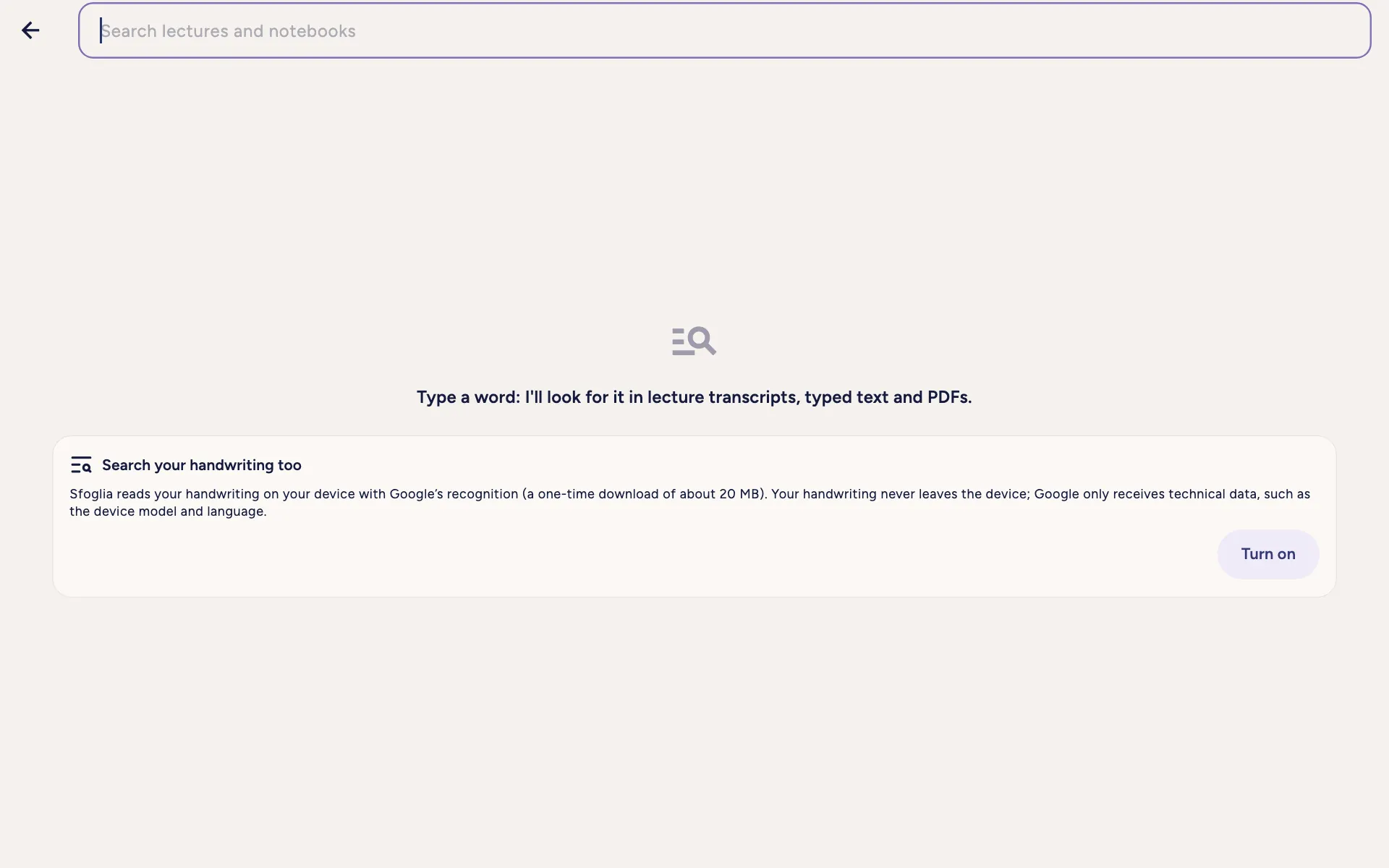
Search finds a word across all your lectures and notebooks: in lecture transcripts, in typed text, in imported PDFs, in text read by AI and, if you turned it on, in handwriting. Capitals and accents don't matter.

- 1
Back
Closes the search and goes back to Home.
- 2
Search lectures and notebooks
Type one or more words: results appear as you type.
- 3
Search your handwriting too
While handwriting search is off, this invitation appears below the field. Turn on activates it (like the Search handwriting switch in Settings): from then on, search also finds words written with the pen. Once it's on, the invitation is replaced by how far the reading of your pages has got.
Results


- 1
Back
Closes the search and goes back to Home. Read more
- 2
Search lectures and notebooks
Type one or more words: results appear as you type. Read more
- 3
Search your handwriting too
While handwriting search is off, this invitation appears below the field. Read more
- 4
Clear
Empties the field for a new search.
- 5
Result
Each row is a place where the word appears, with the words found highlighted:
- Lectures: the lecture's title, the transcript sentence and, on the right, the minute. Tap it and the lecture opens at that minute.
- Notebooks: the notebook and the page. Tap it and the notebook opens on that page.
Results are split into Lectures and Notebooks, with how many there are.
Frequently asked questions
I can't find a word I wrote by hand
Turn on handwriting search in Settings: from then on Sfoglia also recognizes strokes you've already written. If the handwriting is hard to read, try Read the text with AI (Pro) from the page menu.
Home doesn't show the right class
Home takes classes from the Planner: check times and weekly repeats there. A class skipped "just this once" doesn't appear.
Didn't find your answer? Write to support@tidycapy.com or, in the app, Settings → Report a problem: I'll reply as soon as I can.
Guide updated for version 0.9.32