
AI Study
AI Study turns your recorded lectures, PDFs and notes into study sheets: summaries, outlines, concept maps, quizzes and flashcards. You can ask your sources questions and get quizzed out loud. Summaries, outlines and maps can also be made for free and offline, on your device.
The AI Study page


- 1
Search
Opens search across lectures, notebooks and PDFs.
- 2
Sfoglia Pro
The crown opens the Pro page: what it includes, the prices and the subscription. If you already have Pro, it shows your subscription.
- 3
My AI toolsphone & tablet only
Shortcuts to get started right away: Study with me, Map, Quiz, Summary, Outline and All in one. On a phone, swipe sideways to see them all. Each one opens the new sheet with the type already chosen; Study with me opens the spoken oral exam, All in one lets you choose among all types (flashcards too).
- 4
Study with mecomputer only
The AI quizzes you out loud and corrects you. See Study with me.
- 5
Mapcomputer only
Creates a concept map: the main concepts and how they're connected.
- 6
Quizcomputer only
Creates a multiple-choice quiz to test yourself.
- 7
Summarycomputer only
Creates a summary: the important ideas in a few paragraphs, with keywords.
- 8
Outlinecomputer only
Creates an outline: the lecture split into topics, with the main points of each.
- 9
All in onecomputer only
Opens the new sheet with no type chosen: you decide what to create, flashcards too.
- 10
See all
Opens all requests, newest first.
- 11
Study sheet
One of your latest sheets: title, source, date and number of sources; on a computer also the type and time. If there are flashcards to review, it shows how many (e.g. "3 to review today"). Tap it to open it, press and hold to select it in all requests.
- 12
Enjoying Sfoglia?phone & tablet only
Opens Buy me a coffee: a small gift to support Sfoglia. It doesn't unlock extra features. On computers and tablets it's in the sidebar.
- 13
New request
Opens the new study sheet.
- 14
Home
The start page: it shows your day at a glance — your next lesson, upcoming exams, assignments to do and the notebooks you used recently. Read more
- 15
Notebooks
Your library: all your notebooks and folders. Read more
- 16
Planner
Your school planner: your day, the weekly and monthly calendar, exams, assignments, your class timetable and the study timer. Read more
- 17
Record
The lecture recorder: record the audio in class (even with the screen off), or import an audio file, and Sfoglia writes the transcript. Read more
- 18
AI Study
Your study sheets: summaries, outlines, concept maps, quizzes and flashcards made from your lectures, PDFs and notes. Read more
- 19
Settings
The gear opens Settings: language, appearance (light or dark), how you write, notifications, backup, account, Pro subscription, privacy and support. Read more
- 20
Guide (?)
Opens this guide in your browser, right at the part that explains the screen you're on, in the app's language and with pictures of your device (phone & tablet, or computer). Read more
- 21
Buy me a coffeecomputer only
If you like the app, you can buy the developer a coffee with a small payment through the store. Read more
- 22
Sfoglia logocomputer only
The logo at the top of the sidebar. Read more
All requests


- 1
Back
Goes back to AI Study.
- 2
Study sheet
Tap to open it. Press and hold to select one or more: at the top you see how many you've chosen, Select all and Delete selected (the trash can, with confirmation). Lectures and notebooks stay. The ✕ exits selection.
- 3
Home
The start page: it shows your day at a glance — your next lesson, upcoming exams, assignments to do and the notebooks you used recently. Read more
- 4
Notebooks
Your library: all your notebooks and folders. Read more
- 5
Planner
Your school planner: your day, the weekly and monthly calendar, exams, assignments, your class timetable and the study timer. Read more
- 6
Record
The lecture recorder: record the audio in class (even with the screen off), or import an audio file, and Sfoglia writes the transcript. Read more
- 7
AI Study
Your study sheets: summaries, outlines, concept maps, quizzes and flashcards made from your lectures, PDFs and notes. Read more
- 8
Buy me a coffeecomputer only
If you like the app, you can buy the developer a coffee with a small payment through the store. Read more
- 9
Sfoglia logocomputer only
The logo at the top of the sidebar. Read more
Creating a study sheet


- 1
Back
Goes back without creating anything.
- 2
Summary
The most important sentences and the keywords, in paragraphs to read straight through.
- 3
Outline
The lecture split into topics, with the points of each.
- 4
Map
The main concepts and their connections, in a drawing to explore.
- 5
Quiz
Multiple-choice questions to test yourself. The little star means it's written by the online AI.
- 6
Flashcards
Question on the front, answer on the back: for memorizing, with reviews at the right time.
- 7
Length
How long the summary is compared to the original text (from 10%). Further right = longer.
- 8
Depth
How much detail it goes into: from just the main ideas in simple words up to everything, with steps, formulas, examples and exceptions. Below is the sentence describing the chosen level.
- 9
Recorded lectures
Your lectures with a ready transcript: check the ones to use. Select all picks them all at once. Above you see how many sources you've chosen. If there are PDFs in your notebooks, the PDFs in notebooks group appears too.
- 10
Handwritten notes and photos
Pages written with the pen and photos in your notebooks: the online AI reads them.
- •
How?
Who creates the sheet: - On your phone (or tablet, computer): free and offline. It picks sentences from the sources, it doesn't write new ones. Good for summaries, outlines and maps; - Online AI: text rewritten by AI, smoother to read. Included in Pro. With the online AI, High-fidelity model appears: more complete and accurate, but slower.
- •
Create sheet
Creates the sheet and opens it. On the device you see "Reading your sources…"; with the online AI "The AI is writing your sheet…" (it can take up to a minute). Without internet, the online AI request waits and starts by itself as soon as you're connected again.
Reading a sheet: the summary


- 1
Back
Goes back to the list.
- 2
Ask a question
Opens questions with this sheet as the source.
- 3
Study with me
Opens the spoken oral exam on this sheet.
- 4
Copy text
Copies the whole sheet to the device's clipboard, to paste it wherever you want.
- 5
More actions (⋮)
Rename, Report content and Delete. See the menu.
- 6
Source
The lecture or PDF the sheet comes from: tap it to open it.
- 7
Sheet text
At the top the Keywords, then the paragraphs. The small number at the end of a paragraph (e.g. 0:19) is the point in the source it comes from: tap it and the lecture opens at that minute (or the PDF at that page).
- 8
Review
After studying the topic, tell Sfoglia how it went: Hard, Unsure or Easy. Sfoglia brings it back at the right time (under each button you see when: tomorrow, in 3 days…), on the Home screen under To review today.
- 9
Listen
Reads the sheet out loud, one paragraph at a time, with the device's voice (free and offline). While reading you see "Paragraph x of y" and the Previous paragraph, Pause/Resume, Next paragraph and Stop reading buttons. It stops when you leave the page. Not available on Linux.
Under the title are the type, the date and who created it (Online AI or the device).
The sheet menu


- 1
Rename
Changes the sheet's title.
- 2
Report content
If the AI wrote something wrong or inappropriate, choose what's wrong and send: we receive the AI-written text, without your name. Only in online AI sheets.
- 3
Delete
Deletes the sheet, after a confirmation. Lectures and notebooks stay.
The concept map


- 1
Back
Goes back to the list. Read more
- 2
- 3
Study with me
Opens the spoken oral exam on this sheet. Read more
- 4
Copy text
Copies the whole sheet to the device's clipboard, to paste it wherever you want. Read more
- 5
More actions (⋮)
Rename, Report content and Delete. Read more
- 6
Source
The lecture or PDF the sheet comes from: tap it to open it. Read more
- 7
Review
In maps, the review card is behind this button: Hard, Unsure or Easy, as in the summary.
- 8
Concept
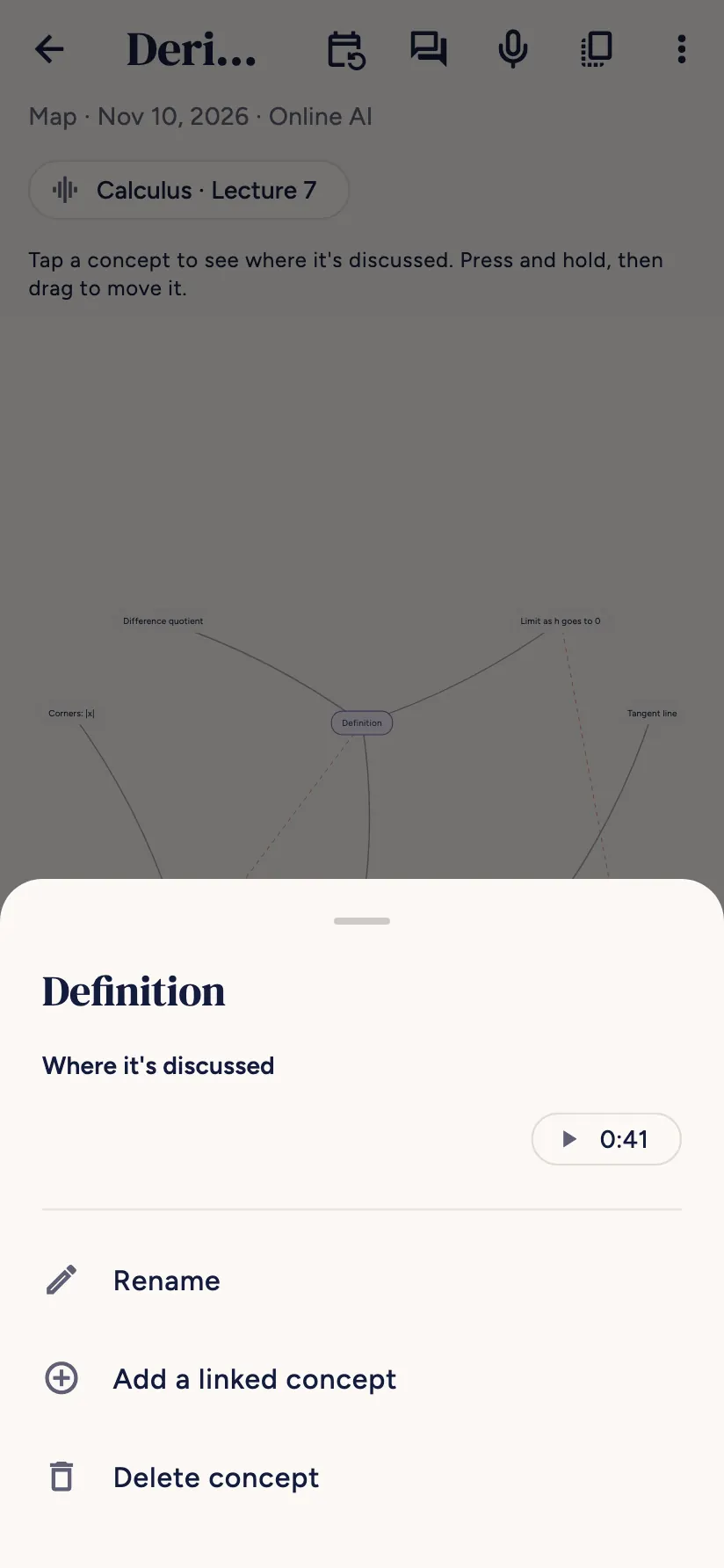
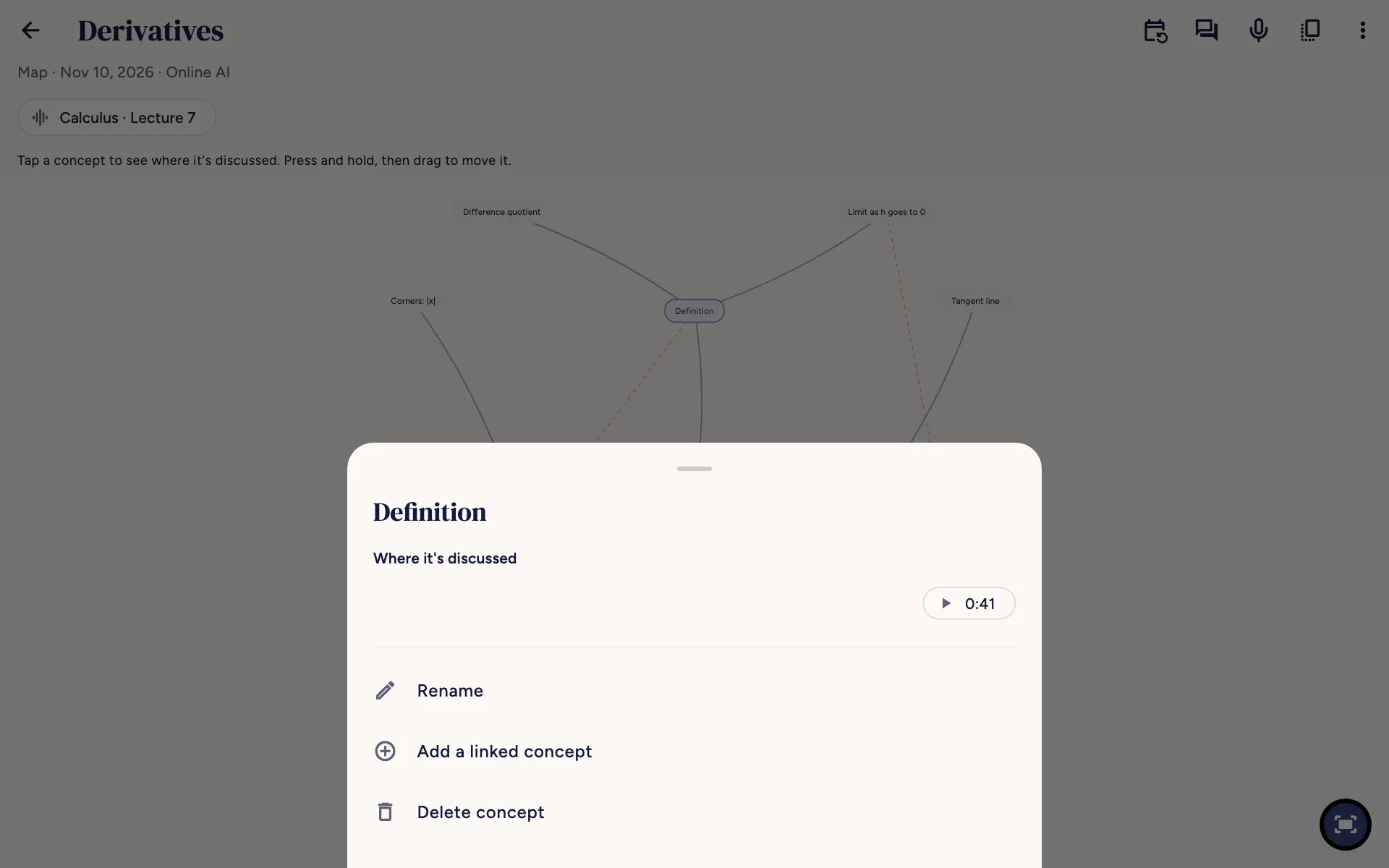
The topic in the middle, the connected concepts around it. Tap a concept to see where it's discussed; press and hold and drag it to move it. Use two fingers to zoom and move the map. Dashed lines connect concepts from different branches.
- 9
Show the whole map
Fits the whole map back on screen.
A concept in the map
- 1
Where it's discussed
The point in the source where the concept is discussed: tap it to open the lecture at that minute (or the PDF at that page). Concepts you add say "Concept you added".
- 2
Rename
Changes the concept's name.
- 3
Add a linked concept
Adds a new concept attached to this one: type the name and it appears in the map.
- 4
Delete concept
Removes the concept (and its links). The central concept can't be deleted.
The quiz


- 1
Back
Goes back to the list. Read more
- 2
- 3
Study with me
Opens the spoken oral exam on this sheet. Read more
- 4
Copy text
Copies the whole sheet to the device's clipboard, to paste it wherever you want. Read more
- 5
More actions (⋮)
Rename, Report content and Delete. Read more
- 6
Source
The lecture or PDF the sheet comes from: tap it to open it. Read more
- 7
Answer
Tap the answer you think is right. You immediately see whether it was right (green) or wrong (red, with the right one in green).
At the top you see which question you're on ("Question 1 of 3") and the progress bar. Questions and answers are shuffled every time.


- 1
Back
Goes back to the list. Read more
- 2
- 3
Study with me
Opens the spoken oral exam on this sheet. Read more
- 4
Copy text
Copies the whole sheet to the device's clipboard, to paste it wherever you want. Read more
- 5
More actions (⋮)
Rename, Report content and Delete. Read more
- 6
Source
The lecture or PDF the sheet comes from: tap it to open it. Read more
- 7
Answer
Tap the answer you think is right. Read more
- 8
Where it's discussed
Opens the source at the point where the answer is explained, so you can review. Above it is the explanation.
- 9
Next
Goes to the next question; at the last one it becomes See the result: how many right out of how many, the questions To review with the right answer, and the Retry the wrong ones and Retake the quiz buttons. Next time, under the title, you'll find the last result.
Flashcards


- 1
Back
Goes back to the list. Read more
- 2
- 3
Study with me
Opens the spoken oral exam on this sheet. Read more
- 4
Copy text
Copies the whole sheet to the device's clipboard, to paste it wherever you want. Read more
- 5
More actions (⋮)
Rename, Report content and Delete. Read more
- 6
Source
The lecture or PDF the sheet comes from: tap it to open it. Read more
- 7
Flashcard
The question on the front. Tap the card to flip it and see the answer.
- 8
Show the answer
Flips the card, like tapping it.
At the top "Card 1 of 3" and how many you know.


- 1
Back
Goes back to the list. Read more
- 2
- 3
Study with me
Opens the spoken oral exam on this sheet. Read more
- 4
Copy text
Copies the whole sheet to the device's clipboard, to paste it wherever you want. Read more
- 5
More actions (⋮)
Rename, Report content and Delete. Read more
- 6
Source
The lecture or PDF the sheet comes from: tap it to open it. Read more
- 7
Flashcard
The question on the front. Read more
- 8
How did it go?
Hard, Unsure or Easy: Sfoglia decides when to show it again (under each button you see when) and moves on to the next. At the end of the round you see how many you know and can review the ones you missed or all of them. When you're done for today, "You've reviewed everything for today" appears, with the date of the next review and Review anyway.
Asking your sources questions


- 1
Back
Goes back to the sheet or lecture.
- 2
Ready-made questions
Three questions to start from: What are the main concepts?, What could they ask me in the exam? and Explain the hardest part in simple words. Tap one to ask it.
- 3
Type a question
Write your question in your own words.
- 4
Send
Sends the question. While the AI searches you see "Looking for the answer in the sources…". Under each answer there's Report, if something's wrong. At the top, Start over clears the conversation.
The AI answers using only your sources and tells you the minute or page the answer comes from: tap it to open the source there.
Study with me


- 1
Back
Goes back.
- 2
Recorded lectures
Choose the lectures to be quizzed on (Select all picks them all). Your notebooks' PDFs are there too, if you have any.
- 3
Handwritten notes and photos
You can also be quizzed on handwritten notes and photos.
- 4
Only the material
Questions and corrections only on what you studied.
- 5
In depth
Goes beyond the material: connections, examples and reasons why.
- 6
Concise
Short questions and corrections in a few words.
- •
How many questions?
3, 5 or 10 questions.
- •
Read out loud
When it's on, the AI reads questions and corrections out loud.
- •
Start the oral exam
Starts. For each question: - Answer turns on the microphone ("Listening…"), I’m done when you've said everything; - Type to answer with the keyboard, I don’t know to skip; - Listen again rereads the question, Stop voice silences it; - Finish ends and shows how it went (it asks first: the answers aren't saved).
The first time, answering out loud needs the lecture transcription model: you download it only once. If the microphone is recording a lecture, answer by typing.
A spoken oral exam: the AI asks you one question at a time about the material you choose, you answer out loud and it corrects you. At the end you get an indicative grade, your strengths and what to review. Your voice stays on the device: only the text of your answer reaches the AI.
Free and Pro
- Free: summaries, outlines and maps on the device (up to 3 sources per sheet), Listen, reviews.
- Pro: the online AI for all sheets (20 a day, 5 high-fidelity), quizzes and flashcards, handwritten notes and photos as sources, unlimited sources, questions to your sources (30 a day) and “Study with me” (60 turns a day).
If you have Pro and reach a daily limit, you see a message; the next day it starts over.
Frequently asked questions
I don't see my lecture among the sources
It needs a ready transcript: open the lecture in Record and check that it's transcribed.
The on-device summary repeats sentences from the lecture
That's normal: on the device Sfoglia picks the most important sentences from the sources, it doesn't write new ones. For rewritten text you need Pro's online AI.
The AI wrote something wrong
Always check in the source (the minute or page next to the text) and use Report content: it helps us improve.
Didn't find your answer? Write to support@tidycapy.com or, in the app, Settings → Report a problem: I'll reply as soon as I can.
Guide updated for version 0.9.32