
Record, transcribe, replay
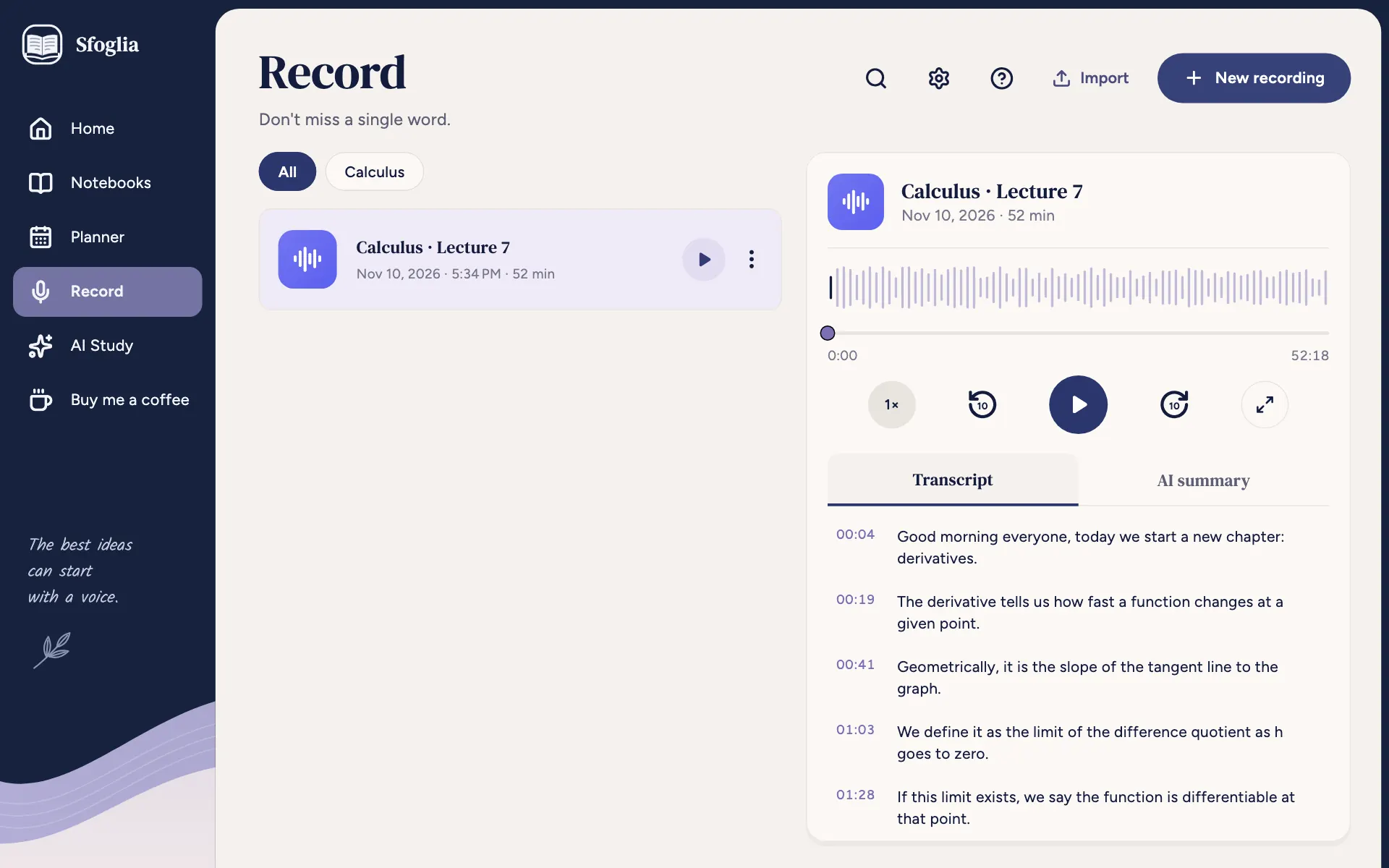
With Record you record the lecture in class, even while writing in your notebook and with the screen off. Sfoglia transcribes it on your device, without sending the audio to anyone, and then you can replay it, search it and turn it into study sheets.
Your lectures

- 1
Search lectures and notebooks
Opens search: finds a word in all transcripts and takes you to the right minute.
- 2
Import a saved recording
Brings an audio file you already have into Sfoglia (recorded with another app, sent by a classmate…). It becomes a lecture like the others: you can replay and transcribe it. If the format isn't supported or the file is damaged, Sfoglia tells you. On a computer the button is called Import.
- 3
New recording
Opens the window to start a recording. On a phone it's the + at the top. While you record the button disappears: you record one lecture at a time.
- 4
Subjects
All or only one subject's lectures (the subject of the linked notebook).
- 5
Recorded lecture
Title, day, time and length. Tap it to open it: on a phone the lecture page opens, on a computer and wide tablet the listening panel appears on the right.
- 6
Play
Starts the lecture's audio right away, without opening it.
- 7
More actions (⋮)
The lecture's menu: Open the lecture and Select. See the menu.
- 8
Open the lecturecomputer only
Opens the lecture full screen, with all its features (replay with notes, questions, marked moments, sharing).
- 9
Transcript and AI summarycomputer only
Switches between the transcript and the lecture's summary.
- 10
Lecture barcomputer only
Shows where you are: drag it to move. Above it (on a computer) is the shape of the audio. On the left the time elapsed, on the right the length.
- 11
Speedcomputer only
Changes the playback speed: each tap moves to the next one (1×, 1.25×, 1.5×, 2× and back to 1×).
- 12
Back 10 secondscomputer only
Goes back 10 seconds.
- 13
Playcomputer only
Starts or pauses the audio.
- 14
Forward 10 secondscomputer only
Goes forward 10 seconds.
- 15
Transcript sentencecomputer only
Each sentence with the minute it was said. Tap it and the audio jumps there; while you listen, the current sentence is highlighted.
- 16
Audio shapecomputer only
A drawing of the lecture's audio: the part already played is colored.
Further down are the Marked moments, with the minute: tap a moment to hear it, the trash can to remove it.
- 17
Home
The start page: it shows your day at a glance — your next lesson, upcoming exams, assignments to do and the notebooks you used recently. Read more
- 18
Notebooks
Your library: all your notebooks and folders. Read more
- 19
Planner
Your school planner: your day, the weekly and monthly calendar, exams, assignments, your class timetable and the study timer. Read more
- 20
Record
The lecture recorder: record the audio in class (even with the screen off), or import an audio file, and Sfoglia writes the transcript. Read more
- 21
AI Study
Your study sheets: summaries, outlines, concept maps, quizzes and flashcards made from your lectures, PDFs and notes. Read more
- 22
Buy me a coffeecomputer only
If you like the app, you can buy the developer a coffee with a small payment through the store. Read more
- 23
Sfoglia logocomputer only
The logo at the top of the sidebar. Read more
- 24
Settingscomputer only
The gear opens Settings: language, appearance (light or dark), how you write, notifications, backup, account, Pro subscription, privacy and support. Read more
- 25
Guide (?)computer only
Opens this guide in your browser, right at the part that explains the screen you're on, in the app's language and with pictures of your device (phone & tablet, or computer). Read more
The listening panel
On computers and wide tablets, to the right of the list, there's the chosen lecture with the player and two tabs:
- Transcript: the lecture's text, sentence by sentence;
- AI summary: the lecture's summary made with AI Study, or the button to create it. You can make a summary once the transcript is ready.
The lecture menu


- 1
Open the lecture
Opens the lecture page.
- 2
Select
Enters selection: tap the lectures to choose (at the top you see how many you've chosen and there's Select all), then Delete selected (the trash can) deletes them together, after a confirmation. Exit selection (the ✕) goes back to the list.
Recording a lecture


- 1
Title
The lecture's name. Sfoglia suggests the subject of the class in progress in the Planner or today's date: change it if you like.
- 2
Link to a notebook
Choose the notebook you'll take notes in. With a linked notebook, every stroke you write during the recording remembers its moment: later you can replay with your notes. You can leave No notebook.
- 3
Cancel
Closes the window without recording.
- 4
Start recording
Starts the recording. The first time, your phone asks for permission to use the microphone. The recording in progress opens.
The recording in progress


- 1
Back
Goes back to the previous screen without stopping the recording.
- 2
Mark
Marks the current moment as important (for example "this will be on the test"). Below you see how many moments you've marked. Afterwards you'll find them on the lecture page under Marked moments, and tapping one jumps the audio there.
- 3
Pause
Pauses the recording (for example during the break); Resume continues in the same lecture.
- 4
Stop and save
Ends and saves the lecture. If the transcription model is downloaded, the transcript is already ready or finishes in a few moments.
- •
Open the notebookonly on some devices
If you linked a notebook, opens it so you can write while recording.
At the top is the title, then Recording with the red dot, the elapsed time and a bar that moves with the volume (if it stays flat, the microphone isn't hearing anything). Recording continues even if you switch screens or turn off the display: a pinned notification reminds you, and across the app a red Recording bar shows the time; tap it to come back here.
The lecture page


- 1
Back
Goes back to the list of lectures.
- 3
More actions (⋮)
Rename, Delete (with confirmation: audio and transcript are erased) and Guide.
- 4
Linked notebook
The notebook linked to the lecture: tap it to open it.
- 5
Replay with your notes
Opens the linked notebook in replay mode: as the audio plays, your notes appear in the order you wrote them. Tap a stroke to hear what was being said while you wrote it. At the bottom there's a player with play/pause, back and forward.
- 6
Create a summary or a map
Opens AI Study with this lecture already chosen as a source, to create a summary, outline, map, quiz or flashcards.
- 7
Ask a question
Ask a question about the lecture and AI answers using only what was said, with the minute the answer comes from.
- 8
Lecture bar
Shows where you are: drag it to move. Read more
- 9
Speed
Changes the playback speed: each tap moves to the next one (1×, 1.25×, 1.5×, 2× and back to 1×). Read more
- 10
Back 10 seconds
Goes back 10 seconds. Read more
- 11
Play
Starts or pauses the audio. Read more
- 12
Forward 10 seconds
Goes forward 10 seconds. Read more
- 13
Copy the text
Copies the whole transcript to the device's clipboard, to paste it wherever you want.
- 14
Transcript sentence
Each sentence with the minute it was said. Read more
- •
Audio shapeonly on some devices
A drawing of the lecture's audio: the part already played is colored. Read more
Under the title are the day, time and length.
Transcription
Transcription happens on your device, without internet and without sending the audio to anyone. It needs a speech model you download only once:
- the first time, the Transcribe lectures on your device card appears with Download (about 670 MB; 160 MB on devices with little memory). Better on Wi-Fi: on mobile data you can choose Wait for Wi-Fi and it downloads by itself as soon as you connect, with the app open;
- if the download stops, Try again resumes where it left off;
- during transcription you see Transcribing: x of y parts (the audio is split into 5-minute parts);
- if the app closed while transcribing, Transcription paused appears with Try again: if it happens again, use the lightweight model.
In Settings, under Transcript: the model in use, Use the lightweight model (less accurate, but uses less memory and space), Delete the model (transcripts already made stay) and Online transcription.
Protecting recordings
In Settings, under Privacy and your data, you can turn on Protect recordings: opening lectures will need your device's fingerprint, face or passcode. A screen lock must be set on the device. When they're protected, the section shows Recordings are protected and the Unlock button.
Frequently asked questions
Recording stopped with the screen off
The phone closed the app to save battery: remove battery restrictions for Sfoglia (see above). The part recorded up to then is saved.
Can I record and write in the notebook at the same time?
Yes: link the notebook when you start recording (or use Record the lecture from the editor) and write as usual. Recording continues even if you switch screens.
Transcription is slow or the app closes
Use the lightweight model in Settings, or, with Pro, online transcription.
Didn't find your answer? Write to support@tidycapy.com or, in the app, Settings → Report a problem: I'll reply as soon as I can.
Guide updated for version 0.9.32