
The Planner
The Planner is your school diary: lectures, exams, deadlines and tasks in one calendar, with reminders, the weekly timetable and a timer to study with. This page explains every screen and every field.
The day
Open the Planner from the navigation bar. At the top you choose the day and how to view it; below are the day's cards.


- 1
Previous
Goes to the day before (in Weekly to the week before, in Monthly to the month before).
- 2
Today
Shows the chosen day, week or month. Tap it to jump back to today.
- 3
Next
Goes to the next day (or week, or month).
- 4
Daily, Weekly, Monthly
Changes how you see the Planner: Daily (the cards on this page), Weekly (a grid with hours and the seven days) or Monthly (the month's calendar). The app remembers your choice. See Week and month.
- 5
More (⋮)
Opens the Planner menu: timetable, exams, tasks, subjects, study timer, settings and guide.
- 6
New event
The + on the The day card (and on Coming up) creates an event: a lecture, an exam, a deadline or another commitment. The New event window opens.
- 7
Event of the day
The day shows the day's commitments in time order, on a timeline: time, title and room. Tap one to open it (an exam opens its card); touch and hold it (or right-click) for the menu: Edit, Skip only that day (for lectures that repeat weekly) and Delete.
- 8
Coming up
Exams, deadlines and other commitments in the next few days, so you know what's ahead. Tap a row to open it.
- 9
New task
The + on the Tasks to finish card creates a task for the day shown. The New task window opens.
- 10
Quote
A line to keep you going, different every day. It's just for reading.
- 11
Study goals
How many of the day's tasks you've completed out of those planned (for example 2/3), with a ring that fills up.
- 12
Study timer
The Pomodoro timer at hand: it shows the time (25:00 by default) and the phase (study or break). The ▶ button starts or pauses it; tapping the card opens the Study timer page with all the options. Below you see how long you've studied today.
- 13
Quick notes
A scrap of paper for quick notes (a number, something to remember): type in Write a note… and tap + (or Enter). Each note has its ✕ to remove it. Notes stay until you remove them.
- 14
Home
The start page: it shows your day at a glance — your next lesson, upcoming exams, assignments to do and the notebooks you used recently. Read more
- 15
Notebooks
Your library: all your notebooks and folders. Read more
- 16
Planner
Your school planner: your day, the weekly and monthly calendar, exams, assignments, your class timetable and the study timer. Read more
- 17
Record
The lecture recorder: record the audio in class (even with the screen off), or import an audio file, and Sfoglia writes the transcript. Read more
- 18
AI Study
Your study sheets: summaries, outlines, concept maps, quizzes and flashcards made from your lectures, PDFs and notes. Read more
- 19
Task to do
Today's tasks and the ones left behind, with the subject in large type and the details below. Read more
- 20
Mark as done
The box next to a task: tap it when you've finished. Read more
- 21
See all tasks
Opens the full task list in the Planner. Read more
- 22
Buy me a coffeecomputer only
If you like the app, you can buy the developer a coffee with a small payment through the store. Read more
- 23
Sfoglia logocomputer only
The logo at the top of the sidebar. Read more
The Planner menu


- 1
Timetable
Opens the weekly timetable, with lectures day by day and import from a PDF or photo.
- 2
Exams
Opens the list of exams, with the countdown.
- 3
Tasks
Opens the full list of tasks.
- 4
Subjects
Opens your subjects: names and colors.
- 5
Study timer
Opens the study timer.
- 6
Settings
Opens Settings (for example for reminders and alerts).
- 7
Guide
Opens this page of the guide.
Week and month
The week


- 1
Previous
Goes to the day before (in Weekly to the week before, in Monthly to the month before). Read more
- 2
Today
Shows the chosen day, week or month. Read more
- 3
Next
Goes to the next day (or week, or month). Read more
- 4
Daily, Weekly, Monthly
Changes how you see the Planner: Daily (the cards on this page), Weekly (a grid with hours and the seven days) or Monthly (the month's calendar). Read more
- 5
More (⋮)
Opens the Planner menu: timetable, exams, tasks, subjects, study timer, settings and guide. Read more
- 6
New
The New button at the bottom creates an event on the chosen day (in Daily you use the cards' + buttons).
- 7
Day of the week
At the top, the seven days with their dates: tap one to choose it; its agenda appears below (or beside).
- 8
Day column
The day's hours from top to bottom. Tap a free hour to create an event starting at that time.
- 9
Event in the week
Each commitment is a box in its subject's color, as tall as it lasts. Tap it to open it, touch and hold it for the menu (Edit, Skip only, Delete).
- 10
Eventcomputer only
Creates an event on the chosen day.
- 11
Examcomputer only
Creates an exam on the chosen day (the window starts on Exam).
- 12
Taskcomputer only
Creates a task due on the chosen day.
- 13
Commitment of the daycomputer only
In the chosen day's agenda, the commitments with time, title, type, subject and room. Tap one to open it.
- 14
Task duecomputer only
The tasks due that day, with subject, day and priority. Tap one to edit it.
- 15
Donecomputer only
The task's box: tap it when you've finished.
- 16
Home
The start page: it shows your day at a glance — your next lesson, upcoming exams, assignments to do and the notebooks you used recently. Read more
- 17
Notebooks
Your library: all your notebooks and folders. Read more
- 18
Planner
Your school planner: your day, the weekly and monthly calendar, exams, assignments, your class timetable and the study timer. Read more
- 19
Record
The lecture recorder: record the audio in class (even with the screen off), or import an audio file, and Sfoglia writes the transcript. Read more
- 20
AI Study
Your study sheets: summaries, outlines, concept maps, quizzes and flashcards made from your lectures, PDFs and notes. Read more
- 21
Buy me a coffeecomputer only
If you like the app, you can buy the developer a coffee with a small payment through the store. Read more
- 22
Sfoglia logocomputer only
The logo at the top of the sidebar. Read more
The month


- 1
Previous
Goes to the day before (in Weekly to the week before, in Monthly to the month before). Read more
- 2
Today
Shows the chosen day, week or month. Read more
- 3
Next
Goes to the next day (or week, or month). Read more
- 4
Daily, Weekly, Monthly
Changes how you see the Planner: Daily (the cards on this page), Weekly (a grid with hours and the seven days) or Monthly (the month's calendar). Read more
- 5
More (⋮)
Opens the Planner menu: timetable, exams, tasks, subjects, study timer, settings and guide. Read more
- 6
New
The New button at the bottom creates an event on the chosen day (in Daily you use the cards' + buttons). Read more
- 7
Event
Creates an event on the chosen day. Read more
- 8
Exam
Creates an exam on the chosen day (the window starts on Exam). Read more
- 9
Task
Creates a task due on the chosen day. Read more
- 10
Commitment of the day
In the chosen day's agenda, the commitments with time, title, type, subject and room. Read more
- 11
Task due
The tasks due that day, with subject, day and priority. Read more
- 12
Done
The task's box: tap it when you've finished. Read more
- 13
Day of the month
Each box is a day: inside you see the commitments (on a computer with time and title, on a phone as dots and "+3" when there are many) and how many tasks are due. Today is highlighted. Tap a day to see its agenda below (or beside).
- 14
Home
The start page: it shows your day at a glance — your next lesson, upcoming exams, assignments to do and the notebooks you used recently. Read more
- 15
Notebooks
Your library: all your notebooks and folders. Read more
- 16
Planner
Your school planner: your day, the weekly and monthly calendar, exams, assignments, your class timetable and the study timer. Read more
- 17
Record
The lecture recorder: record the audio in class (even with the screen off), or import an audio file, and Sfoglia writes the transcript. Read more
- 18
AI Study
Your study sheets: summaries, outlines, concept maps, quizzes and flashcards made from your lectures, PDFs and notes. Read more
- 19
Buy me a coffeecomputer only
If you like the app, you can buy the developer a coffee with a small payment through the store. Read more
- 20
Sfoglia logocomputer only
The logo at the top of the sidebar. Read more
New event
An event is anything with a day and usually a time: a lecture, an exam, a deadline or another commitment.


- 1
Close (✕)
Closes the window without saving.
- 2
Save
Saves and closes. If the title is missing, Sfoglia asks you to type one or choose a subject.
- 3
Type
Exam, Lecture, Deadline or Event (any other commitment, like office hours). The type changes the label's color and what shows on Home and in alerts: exams get the card with the countdown, deadlines appear in the alerts the day before.
- 4
Title
The commitment's name, for example "Physics" or "Calculus 1 – written". If you choose a subject and leave the title empty, the subject's name is used.
- 5
Subject
The subject it belongs to (with its color). Tap to choose from the list, or New subject… to create one on the spot.
- 6
Day
The day of the commitment: tap to pick it from the calendar.
- 7
All day
On: the commitment has no time (for example a deadline). Off: Start and End appear.
- 8
Start
The start time.
- 9
End
The end time.
- 10
Repeat every week
Repeats the commitment every week on the same day, like timetable lectures. When on, Until appears: the last day of the repeats (for example the end of the semester), or No end. A single occurrence can be skipped with Skip a day (or from the lecture's menu with Skip only): skipped days appear in a list and can be put back with Restore.
- 11
Reminder
When to alert you: At start time, some minutes, hours, days or weeks before, On the day, or No reminder. Without a time, the alert arrives at 9:00 a.m.
- 12
Location
Where it takes place, for example "Room 3, Building B". It shows on Home and in the agenda.
- 13
Notes
Anything you want to remember: topics, what to bring, links.
When you open an existing event, the window is called Edit lecture (or exam, deadline, event) and has Delete at the bottom. Deleting a repeating event deletes all its repeats; if it has linked tasks, Sfoglia asks whether to keep them.
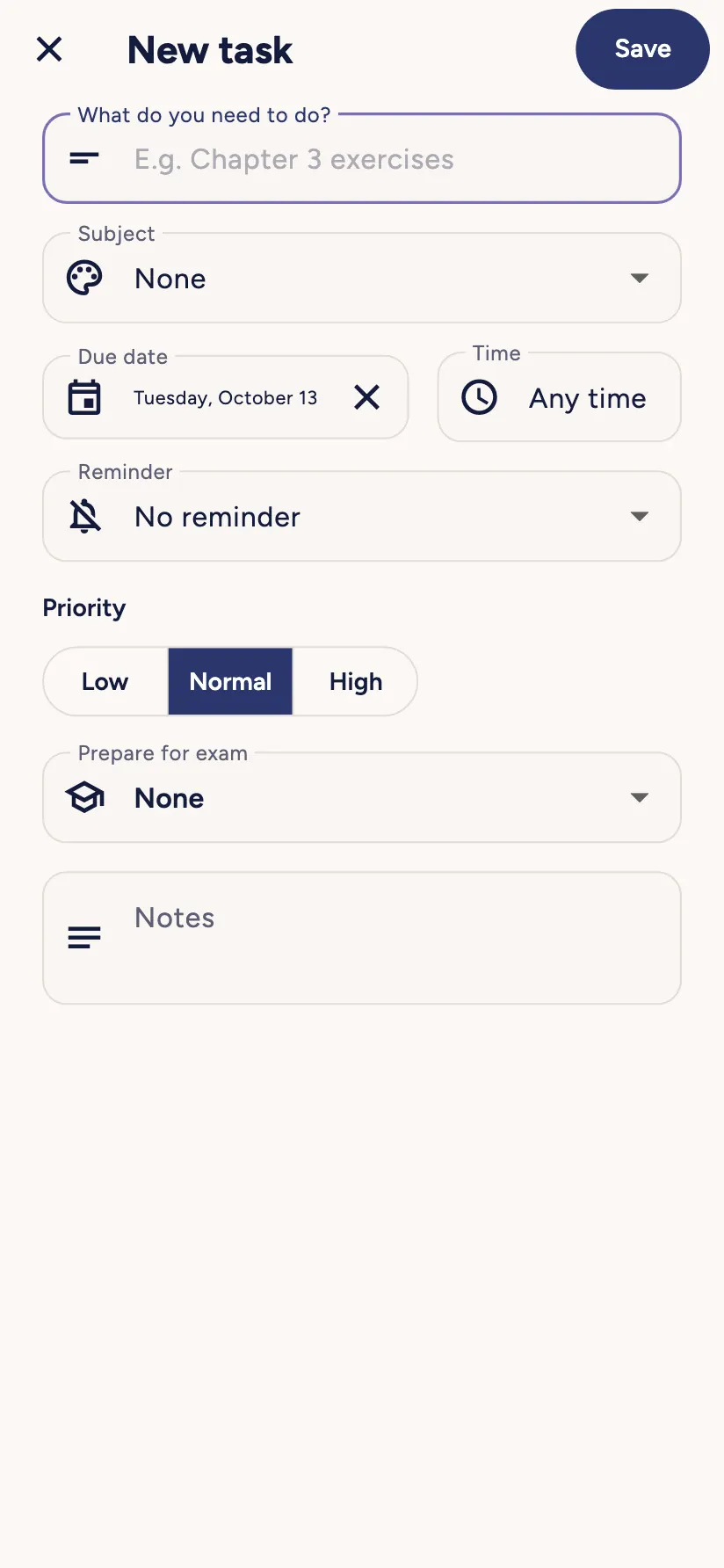
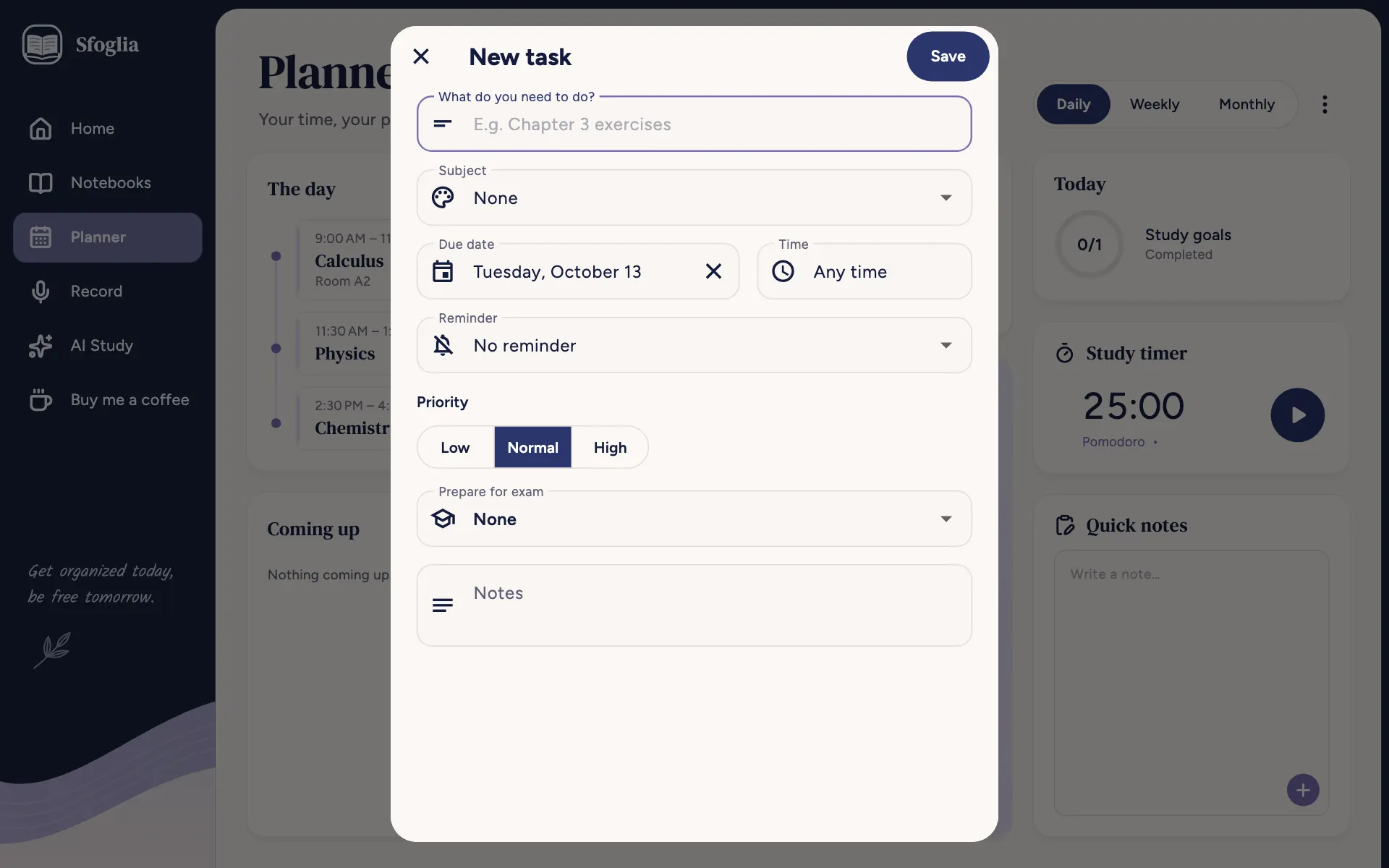
New task
- 1
Close (✕)
Closes the window without saving. Read more
- 2
Save
Saves and closes. Read more
- 3
Subject
The subject it belongs to (with its color). Read more
- 4
Reminder
When to alert you: At start time, some minutes, hours, days or weeks before, On the day, or No reminder. Read more
- 5
Notes
Anything you want to remember: topics, what to bring, links. Read more
- 6
What do you need to do?
The task, for example "Exercises chapter 3". It's the only required field.
- 7
Due date
The day it's due; shortcuts Today, Tomorrow, In a week. Without a due date the task stays in the list until you do it.
- 8
Remove (✕)
Removes the due date (or the time).
- 9
Time
The time it's due, or Any time.
- 10
Priority
Low, Normal or High. High-priority tasks get the "High priority" label and come first.
- 11
Prepare for exam
Links the task to an exam: you'll find it under Preparation on the exam card, which counts how many you've done.
When you open an existing task you can also Start the timer (the study timer starts with that task) and Delete it.
Tasks


- 1
Task due
The tasks due that day, with subject, day and priority. Read more
- 2
Done
The task's box: tap it when you've finished. Read more
- 3
Back
Goes back to the Planner.
- 4
Subjects
All or a single subject: shows only that subject's tasks.
- 5
Completed
Done tasks, gathered at the bottom: tap to open or close the list. Unchecking a task makes it to-do again.
- 6
New
The button at the bottom creates a task (on the exams page an exam, on the timetable page a lecture).
Tasks are in order of due date; overdue ones come first.
- 7
Home
The start page: it shows your day at a glance — your next lesson, upcoming exams, assignments to do and the notebooks you used recently. Read more
- 8
Notebooks
Your library: all your notebooks and folders. Read more
- 9
Planner
Your school planner: your day, the weekly and monthly calendar, exams, assignments, your class timetable and the study timer. Read more
- 10
Record
The lecture recorder: record the audio in class (even with the screen off), or import an audio file, and Sfoglia writes the transcript. Read more
- 11
AI Study
Your study sheets: summaries, outlines, concept maps, quizzes and flashcards made from your lectures, PDFs and notes. Read more
- 12
Buy me a coffeecomputer only
If you like the app, you can buy the developer a coffee with a small payment through the store. Read more
- 13
Sfoglia logocomputer only
The logo at the top of the sidebar. Read more
Exams


- 1
Back
Goes back to the Planner. Read more
- 2
New
The button at the bottom creates a task (on the exams page an exam, on the timetable page a lecture). Read more
- 3
Exam
Each exam shows in large type how many days are left, the title, day, time and subject, and the review status (for example "No review planned" or how many review tasks you've done). Tap it to open its card.
- 4
Home
The start page: it shows your day at a glance — your next lesson, upcoming exams, assignments to do and the notebooks you used recently. Read more
- 5
Notebooks
Your library: all your notebooks and folders. Read more
- 6
Planner
Your school planner: your day, the weekly and monthly calendar, exams, assignments, your class timetable and the study timer. Read more
- 7
Record
The lecture recorder: record the audio in class (even with the screen off), or import an audio file, and Sfoglia writes the transcript. Read more
- 8
AI Study
Your study sheets: summaries, outlines, concept maps, quizzes and flashcards made from your lectures, PDFs and notes. Read more
- 9
Buy me a coffeecomputer only
If you like the app, you can buy the developer a coffee with a small payment through the store. Read more
- 10
Sfoglia logocomputer only
The logo at the top of the sidebar. Read more
- •
Past examsonly on some devices
Exams already taken, at the bottom, to open when needed.
The exam card


- 1
Edit
Opens the exam to change day, time, room, reminder and notes.
- 2
Study now
Opens the study timer with the exam's subject already chosen.
- 3
Review plan
Sfoglia creates review tasks spread over the days left, up to the day before the exam. You can type the topics (one per line, for example "Limits", "Derivatives", "Integrals"): there will be one review per topic; otherwise choose how many review sessions to do. Then tap Create.
- 4
Task
Adds a preparation task for this exam by hand.
- •
Open notebooksonly on some devices
If the subject has a notebook folder, opens it in the library.
Under Preparation are the tasks linked to the exam, with how many you've done (for example "2 of 5 done").
The class timetable
The timetable gathers the lectures that repeat every week. They're ordinary events with Repeat every week: you'll also find them in the calendar and on Home.


- 1
Back
Goes back to the Planner. Read more
- 2
New
The button at the bottom creates a task (on the exams page an exam, on the timetable page a lecture). Read more
- 3
Import from PDF or photo
AI reads your course's timetable from a PDF or a photo and prepares all the week's lectures:
- choose Choose a file, Choose a photo or Take a photo;
- if the file has several courses, type Program and year (for example "Computer Engineering, 2nd year");
- wait for the reading (up to two minutes, keep the page open);
- check the lectures found (AI can make mistakes): tap one to fix it, choose the Class period (from… to…) and save.
- 4
New class on…phone & tablet only
The + next to each day adds a weekly lecture on that day.
- 5
Timetable lecture
Each lecture with subject (the color), time and room. Tap it to open it; touch and hold it for the menu.
- 6
Free hourcomputer only
On a computer the timetable is a days × hours grid: tap a free hour to add a lecture starting there.
- 7
Home
The start page: it shows your day at a glance — your next lesson, upcoming exams, assignments to do and the notebooks you used recently. Read more
- 8
Notebooks
Your library: all your notebooks and folders. Read more
- 9
Planner
Your school planner: your day, the weekly and monthly calendar, exams, assignments, your class timetable and the study timer. Read more
- 10
Record
The lecture recorder: record the audio in class (even with the screen off), or import an audio file, and Sfoglia writes the transcript. Read more
- 11
AI Study
Your study sheets: summaries, outlines, concept maps, quizzes and flashcards made from your lectures, PDFs and notes. Read more
- 12
Buy me a coffeecomputer only
If you like the app, you can buy the developer a coffee with a small payment through the store. Read more
- 13
Sfoglia logocomputer only
The logo at the top of the sidebar. Read more
Subjects


- 1
New subject
Creates a subject: Name (for example "Calculus 1"), Color and, if you like, the subject's Notebook folder (so the exam card can open its notebooks).
- 2
Subject
Each subject with its color: tap it to edit it.
- 3
Delete subject
Deletes the subject. The subject's exams, lectures and tasks stay, without a subject.
You'll see the subject's color in the calendar, exams, tasks and on Home.
The study timer
The timer uses the Pomodoro method: a study period (25 minutes by default) and a short break (5 minutes); every 4 sessions a long break (15 minutes).


- 1
Subject
The subject it belongs to (with its color). Read more
- 2
Back
Goes back to the Planner. Read more
- 3
Durations
Opens the durations and end sound.
- 4
The time
The countdown, the phase (Study, Short break, Long break) and the dots for the sessions in the round.
- 5
Start
Starts the timer. While studying there are Pause/Resume and Finish (saves the session so far); during a break there's Skip break. The timer keeps going even if you leave the app: a pinned notification shows the time left, and at the end it rings like an alarm.
- 6
Task (optional)
Links the session to a task: the time studied goes into that subject's statistics.
- 7
Block other apps
Android only: while you study only Sfoglia stays open (the phone asks you to confirm). During a break or at the end it unlocks by itself.
- 8
Study time
How long you've studied Today and This week, with the hours split by subject.
Durations and end sound


- 1
Durations
The sliders for Study, Short break, Long break (in minutes) and Long break every so many sessions.
- 2
End sound
What plays at the end of each phase: it rings like an alarm until you stop it (1 minute at most).
- the phone's Alarm sound (on a computer Sfoglia sound);
- Your own audio file: Choose an audio file… (up to 20 MB). Where the system doesn't allow it, the alarm sound plays;
- No sound, just the notification.
Try it plays it, Stop stops it. On some phones, with the screen off, the sound may come a few minutes late: Make it ring on time opens the system setting that allows it.
Frequently asked questions
How do I add my timetable without typing it all?
In the ⋮ menu → Timetable → Import from PDF or photo: AI prepares the lectures, you check them and choose the period.
A lecture is cancelled just this week
Touch and hold the lecture → Skip only that day. The other weeks stay.
Reminders don't arrive
Check in Settings → Reminders and alerts that they're on and that your phone allows Sfoglia's notifications. On some phones you also need to remove battery restrictions (see Download and install).
Didn't find your answer? Write to support@tidycapy.com or, in the app, Settings → Report a problem: I'll reply as soon as I can.
Guide updated for version 0.9.32